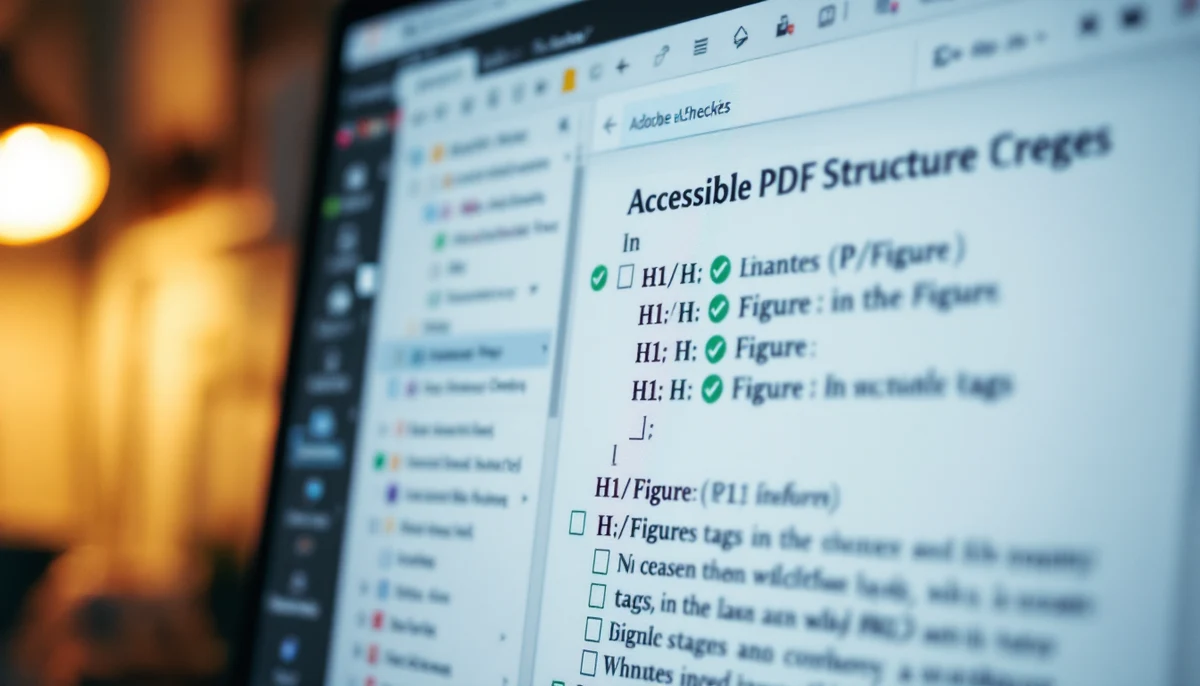
Accessible PDFs end-to-end:
from authoring to remediation
PDF accessibility is not a single switch you flip in Acrobat at the end. It is a chain of decisions that starts in InDesign or Word, runs through the tag tree, hits PDF/UA conformance, gets verified in PAC, and finally meets four screen readers that each read the same file slightly differently. This primer walks the chain in the order engineers actually work it.
1. Authoring: pick the upstream tool you can actually live with
The single decision that shapes every later step is the authoring environment. A PDF generated from a properly-structured InDesign document with the Make Accessible action applied carries 80 percent of its accessibility metadata before anyone opens Acrobat. A PDF exported from a Word document where headings were faked with bold-and-bigger-text carries almost none, and no amount of downstream remediation will fully rescue it. The choice of authoring tool, in other words, is not aesthetic. It is structural.
Three production paths dominate institutional publishing in 2026. Adobe InDesign with the Make Accessible action is the standard for typeset documents — annual reports, textbooks, regulatory filings — where the layout is fixed and the file leaves the design team only once. Microsoft Word with Save as Accessible PDF is the workhorse for office documents — policies, contracts, letters — where the source is edited continuously and the PDF is a rendering rather than a destination. LibreOffice with the PDF Accessibility Checker hand-off is the open-source path used by governments and universities that have policy reasons to avoid Microsoft and Adobe stacks.
Tag trees produced by InDesign and Word are structurally derived from paragraph styles. Tag trees produced by remediation tools are asserted after the fact. The first is auditable against the source; the second is auditable only against itself. Auditors increasingly ask to see the source, not just the PDF.
2. The tag tree: what every accessible PDF actually contains
Under every accessible PDF is a parallel logical structure — the tag tree — that has nothing to do with the visual layout. The visible PDF is a coordinate-addressed paint instruction set. The tag tree is a separate hierarchical document object model that says this paint operation is the first heading, that one is the third bullet of the second list, this picture is decorative, that other picture has alt text “Quarterly revenue by segment, FY24”. A screen reader reads the tag tree, not the paint.
Six tag categories carry most of the meaning in real-world documents: headings (H1 to H6) form the navigable outline; paragraphs (P) are the prose runs; lists (L, LI, Lbl, LBody) are the ordered or unordered enumerations; tables (Table, TR, TH, TD) are the data grids with column and row headers exposed via the Scope attribute; figures (Figure) carry the alt text on their Alt or ActualText attribute; and the reading order, which is the depth-first traversal of the tree itself, dictates the sequence in which a screen reader speaks the document. A page that looks right in two columns can read in the wrong order if the tag tree puts the right column before the left.
Two more attributes matter on every tag in a properly produced file. The language attribute (Lang) tells the screen reader which pronunciation dictionary to use — French quoted inside an English paragraph needs its own Lang attribute on a Span tag, or it will be read with English phonemes. And the artifact marker distinguishes decorative content from structural content; headers, footers, page numbers and decorative rules should all be marked as artifacts so the screen reader skips them.
Sect → H1 (page title) → P (deck) → H2 (left column heading) → P, P, L/LI × 3 → H2 (right column heading) → P, P → Figure with Alt → Table with TH(Scope=Col) and TH(Scope=Row). Reading order follows the tree. Page header marked as Artifact.
Single flat Sect with all content as untyped P tags. Headings are P tags with larger font. Lists are P tags with bullet glyphs inside the prose. Figures have no Alt. The reading order alternates between columns line-by-line because the tag tree mirrors the column-by-column paint sequence, not the logical sequence.
The Acrobat Reading Order tool shows numbered overlays on the visual page that correspond to tag-tree traversal. Engineers who only verify against the visual layout miss reading-order failures, because the visual layout can be correct while the tag-tree traversal is jumbled. Always verify with the Tags pane open and with a screen reader.
3. PDF/UA conformance: what ISO 14289-1 actually requires
PDF/UA is the international standard for accessible PDFs, published as ISO 14289-1 in 2014 and updated in 2024. Where WCAG is technology-neutral and platform-neutral, PDF/UA is PDF-specific — it is the contract between document-producer software, document-consumer software, and assistive technology that says this file’s tag tree, metadata, and structure conform to a verifiable set of conditions, so a conforming reader can rely on them.
The standard is operationalised through the Matterhorn Protocol, maintained by the PDF Association, which decomposes PDF/UA into 31 numbered failure conditions with both machine-checkable and human-checkable variants. Machine-checkable failures include the absence of a document title in metadata, the presence of figures without Alt or ActualText, lists structured outside L/LI tags, and language attributes missing on the document or on language-switched runs. Human-checkable failures cover the things software cannot verify on its own — whether the alt text on a Figure actually describes the figure, whether the reading order matches the logical sequence, whether headings are nested logically rather than skip-levelled.
The 2024 update aligned PDF/UA with WCAG 2.2 success criteria and clarified the treatment of digital signatures and forms — accessible PDF forms must expose field labels, field tooltips, and tab order, and signed PDFs must not block the screen reader’s access to the underlying tag tree after signing.
”PDF/UA conformance is a floor, not a ceiling. A file can clear all 31 Matterhorn conditions and still be a poor reading experience if the alt text is generic or the reading order is technically valid but semantically wrong.”
4. Remediation tools: four products that engineers actually pick from
When a PDF arrives without a usable tag tree — and most legacy PDFs do — the engineer’s choice narrows to four remediation environments. Each has a different combination of strengths in tag-tree editing, OCR for scanned originals, batch processing, and PDF/UA reporting. The matrix below maps capability against tool.
| PAC 2024 | Adobe Acrobat Pro | Foxit PDF Editor | ABBYY FineReader 16 | |
|---|---|---|---|---|
| PDF/UA full report | Yes (canonical) | Partial (preflight) | Partial (own checker) | Limited |
| Edit tag tree in-app | N/A (read-only) | Yes | Yes | Yes |
| OCR for scanned PDFs | N/A | Yes | Yes | Yes (best in class) |
| Reading-order overlay | Read-only | Yes (Touch Up Reading Order) | Yes | Limited |
| Bulk / scripted remediation | N/A | Yes (Actions) | Yes (Actions) | Yes (Hot Folder) |
| Matterhorn-aligned output | Yes | Approximate | Approximate | Limited |
| Cost band | Free | Subscription | Perpetual or subscription | Perpetual |
PAC is the only widely-trusted PDF/UA verifier in the field, but it does not edit. Most production teams pair PAC with Acrobat Pro (default) or Foxit (where licensing rules require an alternative) and reach for ABBYY only when the source is a scanned image-only PDF that needs OCR before any tag tree can be built.
5. How the four screen readers handle a tagged PDF
A correctly tagged PDF is only the producer’s half of the chain. The other half is the screen reader, and the four readers most users actually deploy treat the same file in subtly different ways. The differences matter because a document that reads cleanly in JAWS can stumble in NVDA, and a file that works in VoiceOver on macOS may behave differently when the same file is opened by ChromeVox in Chrome’s built-in PDF viewer.
JAWS has the deepest, oldest PDF support of any commercial screen reader. Its PDF Mode renders tagged PDFs through Acrobat or Acrobat Reader and exposes the tag tree directly — headings list (Insert+F6), forms list (Insert+F5), table-cell navigation with the standard JAWS table keys. When a PDF lacks tags, JAWS will offer to infer structure, but the inferred result is unreliable; engineers should not validate against JAWS-inferred reads.
NVDA reads tagged PDFs through Acrobat or Acrobat Reader as well, with browse-mode navigation that mirrors its web-page model — H to jump headings, K to jump links, T to jump tables. NVDA’s PDF support has improved markedly since 2022 but still trails JAWS for complex tables and form fields. NVDA gives more honest feedback for documents with malformed tags: where JAWS may soldier on, NVDA tends to fall silent, which is useful diagnostically.
VoiceOver on macOS reads PDFs through Preview and Safari with rotor navigation (VO + U) over headings, links, tables and form fields. VoiceOver is the most forgiving of the four — it will reconstruct a reading order even for poorly-tagged files — but its forgiveness can mask real failures. A document that reads acceptably in VoiceOver should still be verified against JAWS or NVDA, not the other way around.
ChromeVox on ChromeOS, and the broader behaviour of any screen reader interacting with Chrome’s built-in PDF viewer, sits in a different category. Chrome’s PDF viewer rasterises and re-extracts text rather than rendering the original tag tree, so a PDF with a clean tag tree can lose much of its structure when opened directly in Chrome. The workaround for accessibility-critical contexts is to force the file to download and open in Acrobat Reader, or to provide an HTML alternative.
| JAWS · Acrobat | NVDA · Acrobat | VoiceOver · Preview | ChromeVox · Chrome viewer | |
|---|---|---|---|---|
| Tag-tree fidelity | High | Medium-high | Medium | Low (re-extracted) |
| Headings navigation | Yes (Insert+F6) | Yes (H key) | Yes (rotor) | Limited |
| Tables with TH scope | Yes | Yes (improved 2022+) | Yes (rotor) | Often flattened |
| Form fields | Yes | Yes | Yes | Limited |
| Language switching | Yes (Lang attribute) | Yes | Yes | Inconsistent |
| Silent on malformed tags | Soldiers on | Tends to fall silent | Reconstructs | Re-extracts |
If you only have time to test against two combinations, pick JAWS+Acrobat (the institutional default in regulated sectors) and NVDA+Acrobat (the free open-source baseline). Together they cover roughly the same ground as a four-reader sweep for everything except ChromeVox-specific edge cases.
6. The end-to-end workflow, in the order you actually run it
Putting the chain together: a single accessible PDF moves through six concrete steps. They are sequential — skipping any one of them produces a file that will fail in one of the later steps or in the user’s hands.
Author in a tag-aware tool with paragraph styles mapped
Either InDesign with paragraph styles mapped to Export Tags, Word with the built-in Styles applied (no faked headings), or LibreOffice with Heading and List styles applied. The tag tree is generated from these style mappings.
Export with the accessibility action enabled
InDesign: File → Export → PDF, choose Tagged PDF and run the Make Accessible action. Word: File → Save as Adobe PDF or Save as PDF with the Document structure tags for accessibility option. LibreOffice: File → Export as PDF, tick Tagged PDF and Use reference XObjects.
Verify the tag tree in Acrobat or Foxit
Open the Tags pane, walk the tree, confirm headings are nested logically, lists are L/LI/Lbl/LBody, tables have TH with Scope, figures have Alt or ActualText, and decorative elements are marked as Artifact. Run Tools → Accessibility → Reading Order to verify reading order numerically.
Run PAC for the canonical PDF/UA report
PAC produces the machine-checkable portion of the Matterhorn Protocol report. Resolve every red flag. Note that PAC’s green flag clears the 31 machine-checkable conditions only; human-checkable conditions (such as whether the alt text is meaningful) still require a person.
Test with at least two screen readers
JAWS+Acrobat and NVDA+Acrobat at a minimum, plus VoiceOver if your audience includes macOS users. Navigate by headings, by tables, by form fields. Confirm language switches read in the right voice. Confirm reading order matches the logical sequence.
Ship and version-control the source
The deliverable is the PDF, but the maintainable artefact is the source document with its paragraph-style map. Store both. When the document needs an update, re-export and re-verify from source — do not edit the tag tree of the shipped PDF directly unless the source is unrecoverable.
Conclusion: accessible PDF production is a chain, not a checkbox
Teams that treat PDF accessibility as a final-pass remediation problem end up paying the bill twice — once to remediate a file produced without structural intent, and again every time that file is updated. Teams that treat it as an authoring problem build the tag tree at the source, regenerate it cleanly with each revision, and use PAC and a screen reader as verification rather than as repair. The cost difference between the two postures is large; the accessibility difference is larger.
The chain documented above is deliberately tool-agnostic at each link. Whether the upstream is InDesign or LibreOffice, the editor is Acrobat or Foxit, the verifier is PAC, and the screen reader is JAWS or NVDA, the structural logic is the same: paragraph styles map to tags, tags conform to PDF/UA, PDF/UA gets verified by PAC, and screen readers read the result. Tools change; the chain does not.
For procurement and compliance teams, the operational implication is that PDF accessibility statements should reference the production chain — the authoring tool, the export action, the verifier — not just an Acrobat checker result. For engineering teams, the implication is that the tag tree is the source of truth, and the tag tree is built upstream of any PDF the user ever sees. For a hands-on production walkthrough that complements this primer, see the PDF accessibility step-by-step playbook.
”The accessible PDF is the one whose tag tree was authored, not the one whose tag tree was patched.”